To use the "scan to email" feature on all photocopies.
Firstly, you need to log into the printer; this can be done by either the RFID chip that you may have been given. Or a little long-winded, but you can also use the username and password given to log into one of the school computers.
Once logged in, you should see the home screen below
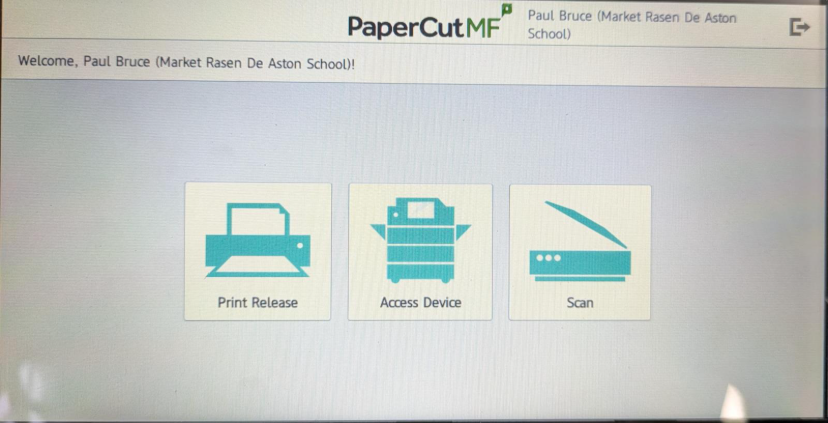
If you select the scan option, you should now see the next screen.
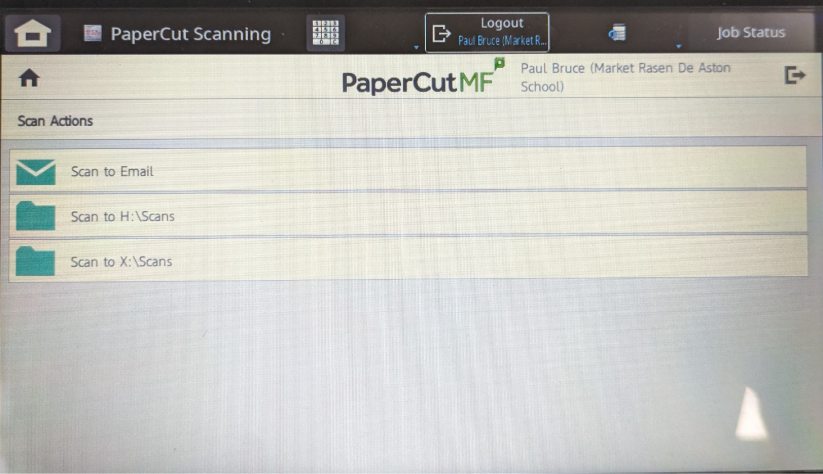
From here, you have a few options you can select from.
- Scan to email
- This allows you to scan and send directly to an email address. Your email address will be the default, but you can send this to any other email address.
- Scan to H:\Scans
- This allows you to scan directly into your H Drive, into a folder that will be created called “Scans”.
- Scan to X:\Scans
- This allows you to scan into a public folder on the X Drive, into a folder already created called “Scans”
As this “how to” is about “scan to email”, the last screen is where you press start.
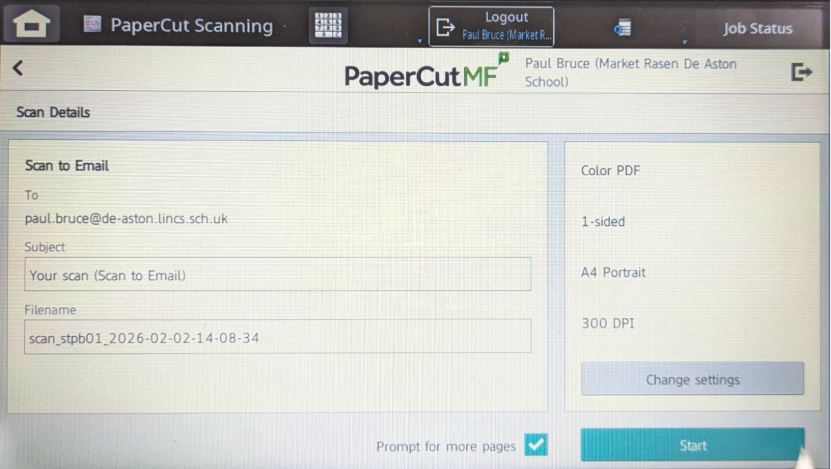
The photocopier will now construct an email to be sent to the designated address, with a subject of “Your scan (Scan to Email)” and a file name “scan_username_Date”, both of which can be changed if needed. The attached scan will now arrive in your mailbox.
Was this article helpful?
That’s Great!
Thank you for your feedback
Sorry! We couldn't be helpful
Thank you for your feedback
Feedback sent
We appreciate your effort and will try to fix the article